
If you’re looking to drive traffic, grow your business, or get more clicks on Pinterest, you need pins that grab attention fast. These days, AI makes designing high-converting Pinterest pins much easier, even if you don’t have any design experience.
From picking eye-catching colors to crafting irresistible pin headlines, AI tools can handle the heavy lifting. I’m sharing tips, tools, and some real-life methods to help you turn AI into your personal design assistant. Everybody can put these tricks to work without expensive software or hiring pros.
Using what I am sharing in this article, I went from zero monthly Pinterest impressions to thirty-thousand in less that ninety days!
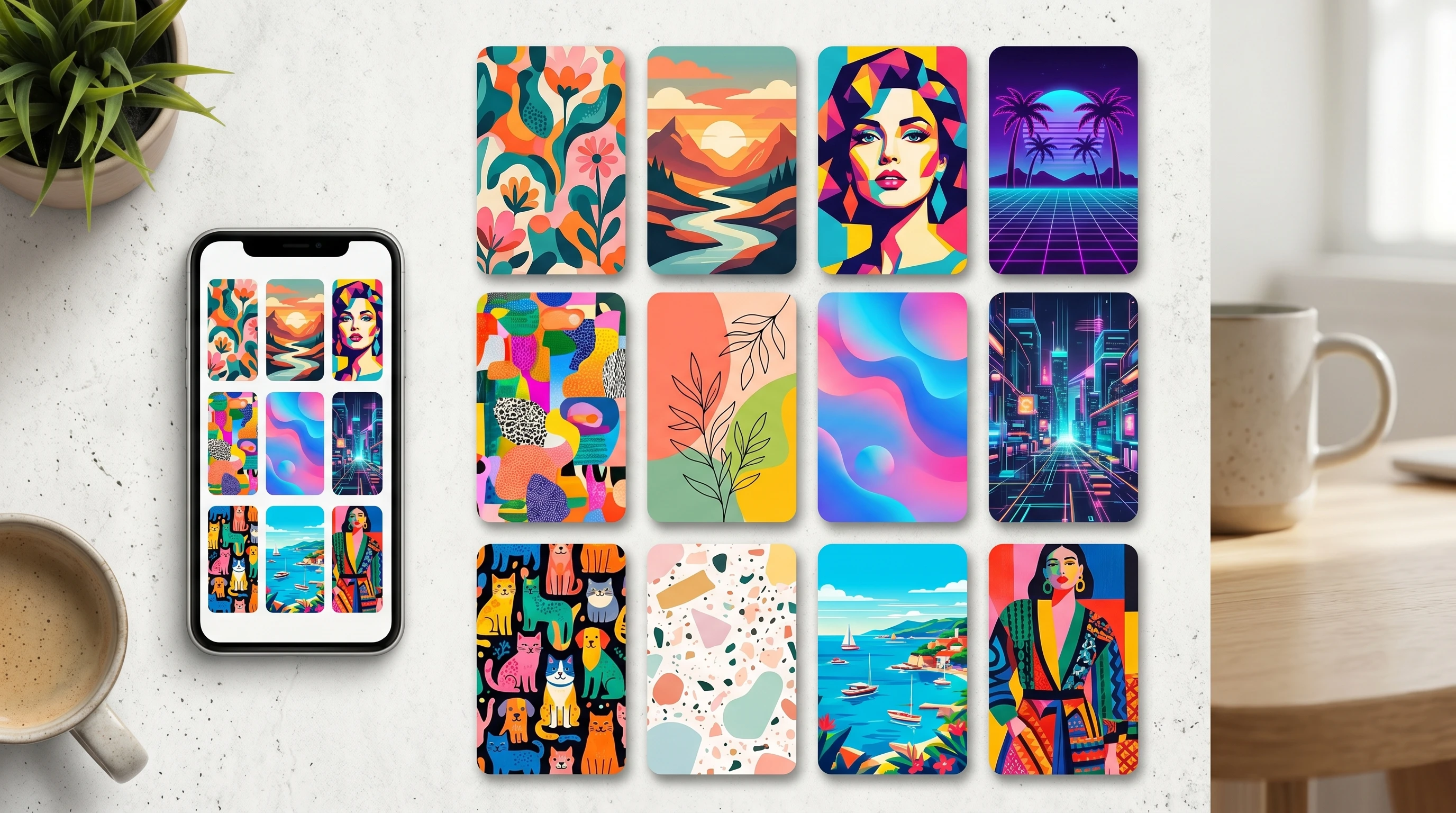
Why Use AI for Pinterest Pin Creation?
Pinterest is a powerhouse for visual discovery. Users scroll through hundreds of pins looking for ideas, inspiration, and solutions. To stand out, your pins must pop. AI design tools are super helpful because they automate tasks that would normally take hours.
AI can instantly suggest colors that are popular, recommend layouts that get noticed, and even write catchy titles. Instead of getting stuck in a creative block or spending ages tweaking every detail, you feed your topic and a few style preferences into the AI and get designs back quickly. It’s amazing how much faster it makes the process.
Pinterest’s algorithm loves fresh content, so the quicker you can make new pins, the more you can test what works. Tools like Canva AI and Adobe Firefly also make it easy to customize templates to fit your brand. This means you can keep your Pinterest board looking polished and consistent with less effort.
What Makes a Pinterest Pin High-Converting?
A great pin is more than just nice to look at. The main goal is to get someone to click through to your website or offer. Here’s what stands out for high-converting pins:
- Bright, clear visuals: Pixels matter. Blurry images won’t cut it. Bright, bold photos or graphics tend to get far more saves and clicks.
- Easy to read text: Choose fonts that are easy to read and big enough, especially for mobile. Too much text can make people scroll by.
- Clear headline: Use a single phrase that quickly shares the benefit of clicking. “Spring Outfit Ideas” is more effective than a random quote or label.
- Branding elements: Your logo or website helps build trust and makes you more memorable.
- Sticking to what’s trending: Pinterest users love new things. Using current colors, fonts, or themes will help your pin stand out.
AI tools analyze thousands of pins that perform well and can blend these elements for you, or suggest tweaks that improve your designs.
How to Get Started with AI Pin Design Tools
If using AI for design is new to you, don’t worry. Most AI-powered tools are simple to use and have almost no learning curve. Here are some platforms to try:
- Canva Magic Design: Type in your topic, and Canva creates pin templates with images, colors, and suggested text.
- Adobe Express AI Tools: Great for quickly generating unique backgrounds and graphics using prompts.
- RelayThat: Makes sure every pin looks professional and on-brand with ready layouts and brand kits.
- ChatGPT: Use this for brainstorming pin headlines, caption ideas, or call-to-action phrases that match your brand tone.
- WA Image Studio: amazing images that can be used in Pinterest, TikTok, website blogs, and Youtube! This is my go-to choice. Learn more here!
Many of these tools offer free plans, so you can experiment before spending any money. Start by making 5 to 10 pins and check which ones get more engagement. Adjust your style based on real results for faster improvement.
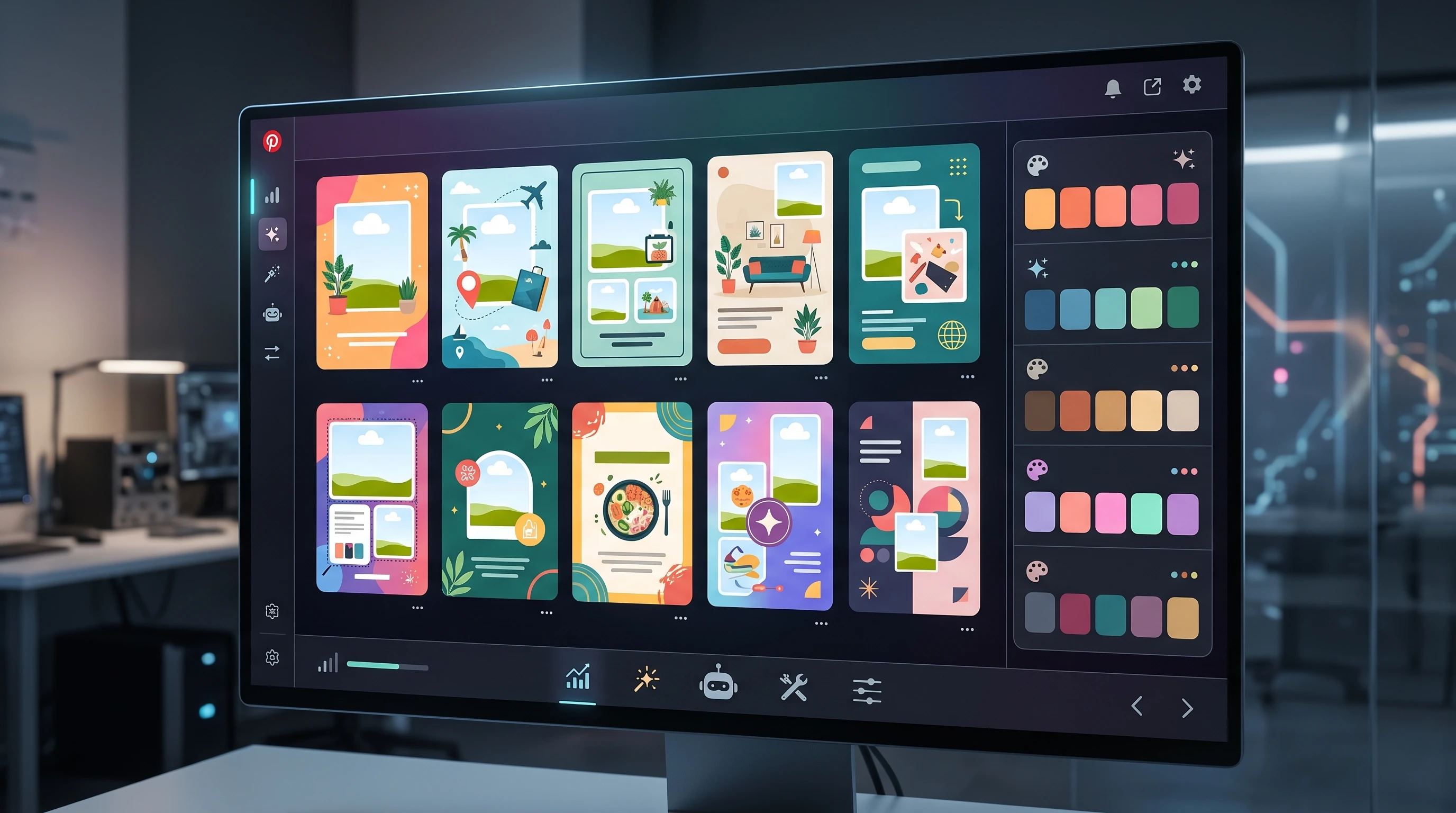
Step-by-Step: Creating a High-Converting Pin with AI
You don’t need to be a designer to make a great pin. AI takes care of the tough parts. Here’s my process:
- Pick your pin topic or lead magnet: Decide what you want to promote; for example, a free recipe ebook, a new blog post, or a sale in your online store.
- Write a simple headline: Use ChatGPT or Google Gemini to come up with a short, catchy headline. Something clear like “5-Minute Vegan Breakfasts” works well.
- Select your AI design tool: Open Canva, Adobe Express, or whichever platform you prefer.
- Enter your headline and topic: Input these into an AI pin generator or search for suggested templates.
- Choose visuals: Let AI pick royalty-free images or generate backgrounds for you. Tweak photo styles or colors to match your brand if you want.
- Customize branding: Upload your logo and website. Adjust the font or colors with a couple of clicks.
- Preview and export: Make sure the text is readable on mobile. Download your finished pin as a PNG or JPEG.
This whole workflow takes about 10 minutes per pin once you get the hang of it. If you batch tasks like writing all the headlines at one time and then creating visuals in one go, it’s even faster.
AI Pin Optimization Tips for More Engagement
Designing your pins is just step one. AI can help boost each pin’s performance, too. Here’s how to make pins more likely to go viral:
- Use AI-powered keyword tools: Platforms like Pinterest Trends or AnswerThePublic show you what people are searching for, so add these keywords to your headlines or descriptions.
- A/B testing with AI analytics: Platforms like Tailwind or Pinterest’s analytics use AI to show which designs and keywords get the most clicks.
- Automated audience targeting: Some AI tools examine who saves your pins and suggest the best audience interests or hashtags to include.
- Refresh and remix: If one pin works well, ask AI to switch up the colors, backgrounds, or headline to create a new version and keep your content fresh.
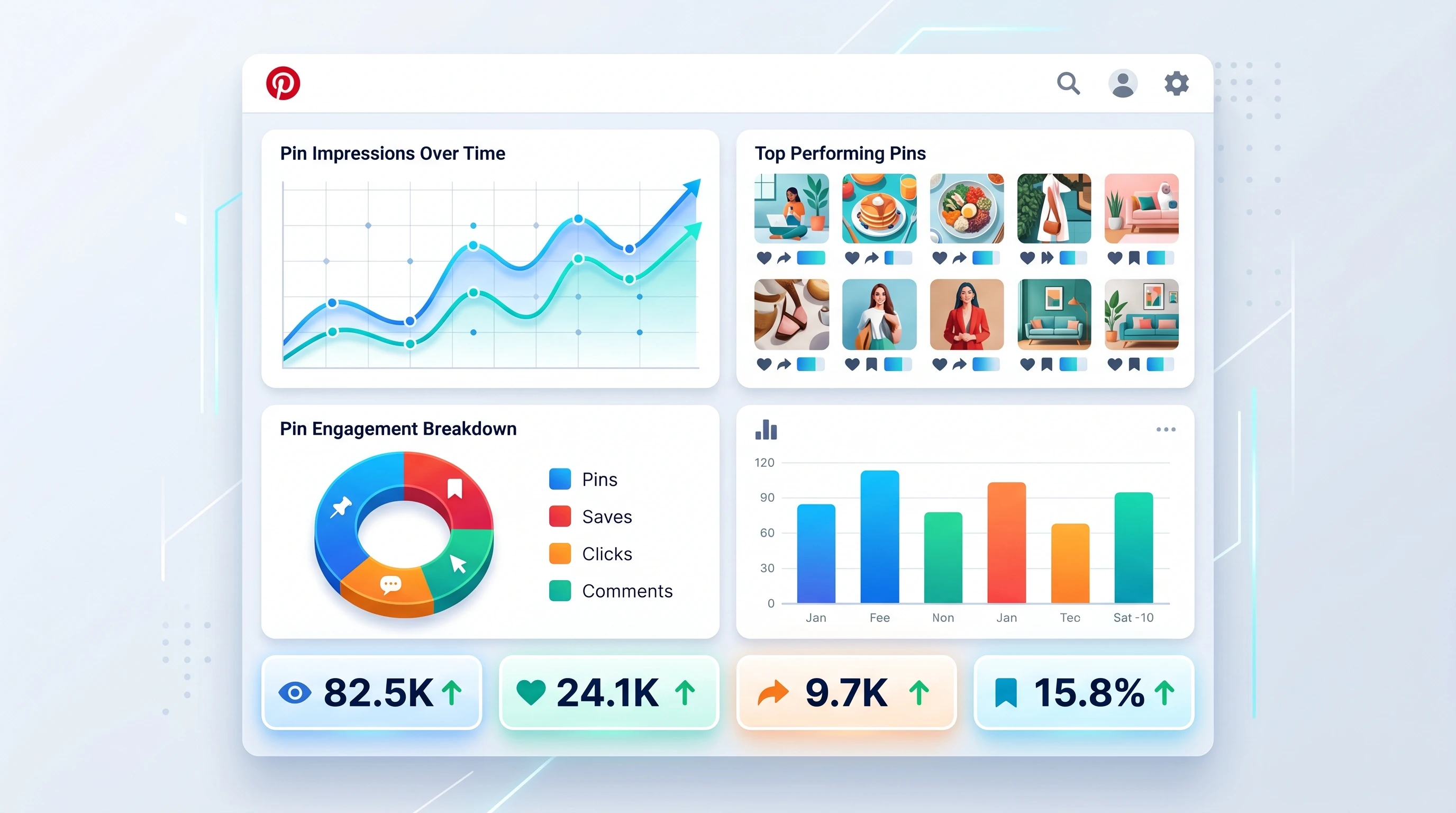
Take a look at your analytics every week. Track save rates, outbound clicks, and which pin designs get shared not just views. Focusing on these numbers helps you understand which AI-generated changes make a real difference.
Things to Watch Out for When Using AI
AI is super helpful, but keep these points in mind as you go:
- Overused templates: Sometimes lots of people use the same AI template. Make sure to add at least one original touch or tweak the colors to help your pins stand out.
- Stocklike images: Try AI-generated graphics or upload your own photos to make your brand unique.
- Brand mismatches: AI might choose pretty fonts or colors that don’t fit your normal style. Double-check before publishing and keep your brand kit handy.
- Minor text mistakes: AI text isn’t perfect. Check for typos, weird phrasing, or text that doesn’t fit on mobile screens.
Image Resolution and Format
Pinterest suggests 1000 x 1500 pixels for standard pins. Using this size with high-quality images (not blurry or squished) helps your pins look far more professional and boosts credibility with viewers.
Pin Consistency and Aesthetics
Sticking with a signature style or color scheme will help your pins look organized and branded. Save two or three color groups and your favorite fonts in your AI tool so every design stays on track with your look.
Getting Thousands of Pinterest Impressions
So how did I attract thirty-thousand impressions in a short period of time? I posted two pins a day. I used Scout Pins, Regular pins, and TOBI pins. It’s easy to setup many pins in a day using AI image tools and schedule days out in order to keep consistency.
If you want to know what Scout Pins, Regular Pins, and TOBI pins are, leave a comment and I will get you that information.
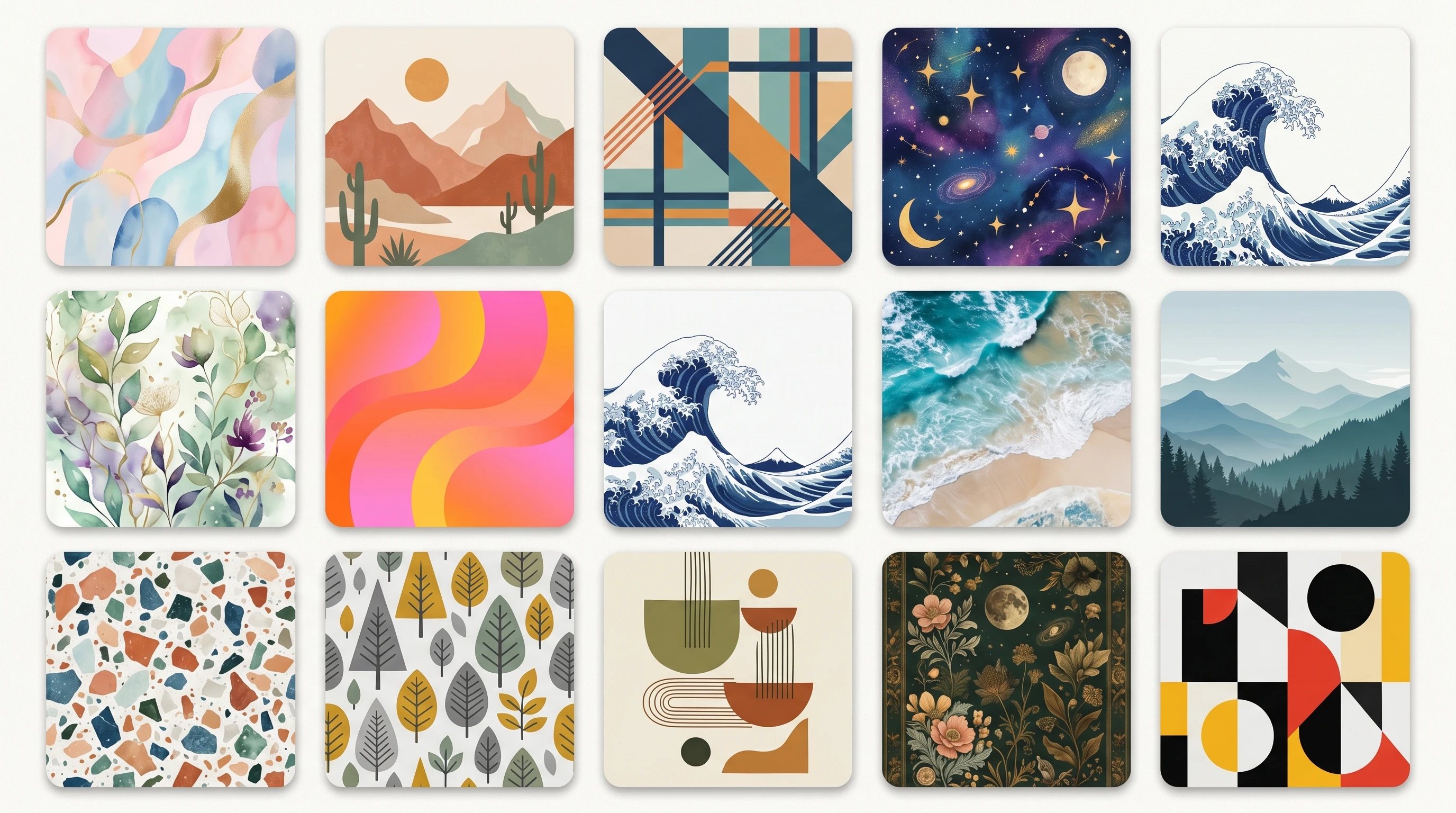
Advanced AI Tricks for Power Users
Once you have the basics down, AI can help you take your pins up a notch. Here are some tricks used by “power” users:
Batch-create pin variants: Make five or six versions of a single pin topic, each with a different color set or headline. Canva’s bulk create lets you push out a bunch and see which one wins on clickthrough rate.
Prompt engineering: Get creative with your prompts, especially with art AI tools. Instead of just typing “summer cocktail pin background,” try something like “sunny beach scene with fresh fruit and glassware, pastel palette.” More detailed descriptions often get you next-level cool results.
Integrate scheduling tools: Connect AI-generated designs directly to Pinterest scheduling tools such as Tailwind. This lets you schedule pins at optimal times for your audience and automates your pinning process.
Frequently Asked Questions
Below are some popular questions I get asked about creating Pinterest pins with AI:
Question: Do I need to know graphic design to make AI pins?
Answer: No design knowledge is required. Most AI tools are drag-and-drop and guide you step by step.
Question: Can I use my own photos, or do I have to rely on stock images from AI?
Answer: You can upload your images and blend them with AI visuals and layouts. It helps you keep things original and personal.
Question: How can I make sure my pins don’t look like everyone else’s if we all use the same AI platforms?
Answer: Try tweaking colors, swapping fonts, or adding personal touches like sketches or photos. Remixing backgrounds or using unique prompts also helps you switch things up.
Question: What is the recommended size for Pinterest pins?
Answer: Use 1000 x 1500 pixels and a 2:3 aspect ratio. This is the format that looks best across Pinterest on every device.
Question: Are AI-generated pins a good fit for every niche?
Answer: Yes, though some styles shine in certain niches. For food, color, and clear photos are a must. For DIY or quotes, bold text and fun backgrounds work better. Test a few styles and see which your audience prefers.
Wrapping up, using AI to design Pinterest pins will save you time and help your content reach more eyes. Experiment with these tools, keep tweaking your style, and you’ll see real growth in your Pinterest results without burning out or breaking the bank.
You can also check out another discussion on this same topic by clicking here.